PSN Downloader: CF3B5(working on OFW 4.60)
Posted: Tue Jan 15, 2013 7:48 pm
The Ps3 ProxyServer is a free program from chinese developer CF3B5 that allows your computer to become a server that handles traffic to your Ps3, it is very easy to use, one needs only to follow these steps:
CLICK this for: VIDEO TUTORIAL
Second video: PS3 LATEST FIRMWARE TUTORIAL
THINGS BE NEEDED BEFORE YOU CAN USE THIS APP:
1. router (should be wired or wifi)
2. Application: http://ps3-proxyserver.software.informer.com/
3. dotnetfx.exe: http://download.microsoft.com/download/ ... tnetfx.exe (install this before installing the application)
4. Internet Download Manager: Download this: https://www.dropbox.com/s/g9d00so299jmm ... ld%208.exe
Install all the above application and you are ready to go.
Working on windows XP, windows 7, and windows 8.
You can also download patches using this application.
STEPS:
On your PC:
1. Download this link http://ps3-proxyserver.software.informer.com/ and download the application.(stated above)
2. You might need this also before installing the above application: http://download.microsoft.com/download/ ... tnetfx.exe (stated above)
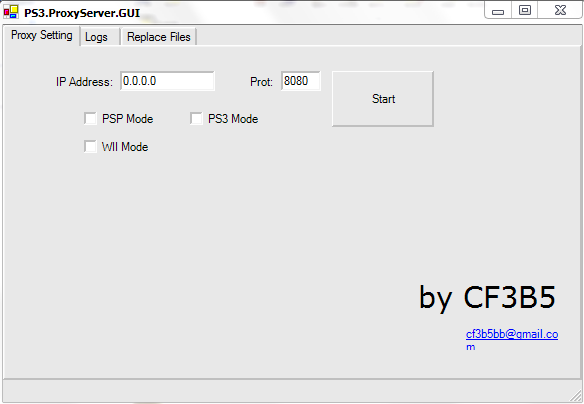
3. After installation of the .Netnetwork and the proxy application, go to C:(local disk) > programs files > CF3B5 folder > PS3.ProxyServer > click PS3.ProxyServer.GUI and the application looks like this:
4. Know first your IP address. example: 192.168.0.140
5. Open the application and put your IP address
6. Leave the port 8080 and tick PS3 Mode
7. Click "Start"
On your PS3
1. Go to network settings > internet connection settings
2. Select the method "Custom" > Wired Connection > Auto-detect > IP address seting: automatic > DHCP: Do not set > DNS setting: Automatic > MTU: Automatic > til you see "Proxy server"
3. On "Proxy server", click "use"
4. Put on the Address the IP address you use on the application (example above: 192.168.0.140)
5. Put "8080"on the "Port number"
6. Save the PS3 Network settings.
On PSN store
1. Log in your PSN account the Go to your Download History
2. Click any game you want to download
3. While its activating and downloading, the link on the LOGS on your Proxy application will appear.

4. You can now cancel the downloading game on your PS3.
4. Copy the log. I suggest copy the log and save it to your Notepad and keep the copy of it.
On your PC
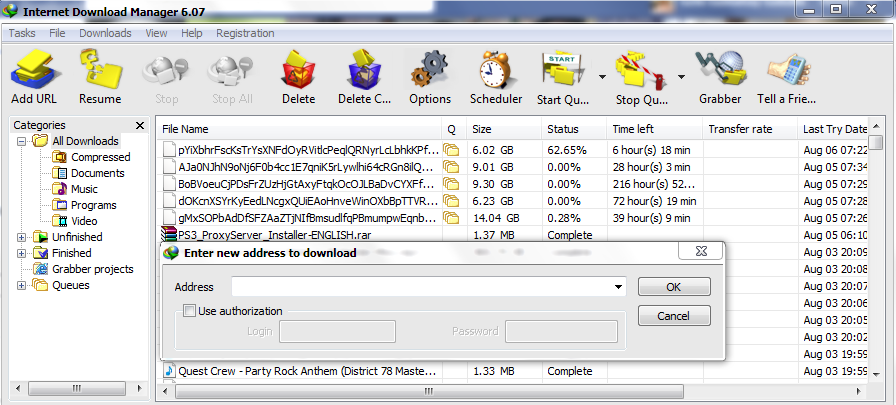
1. Paste the copied log to your downloader. I personally use IDM. Paste it on the "Address box" to download and click OK
2. Wait and let it download
3. Save the downloaded file(PKG) to your preferred location to your PC.
4. On the Proxy application, Click "Add" and two boxes will appear.
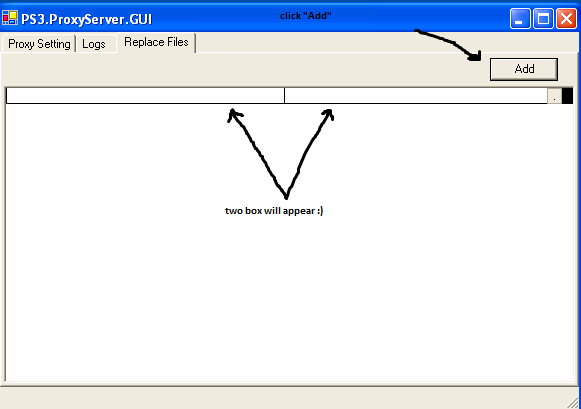
5. First box: Copy and Paste the Log of the PKG file you downloaded. (you save it to your notepad)
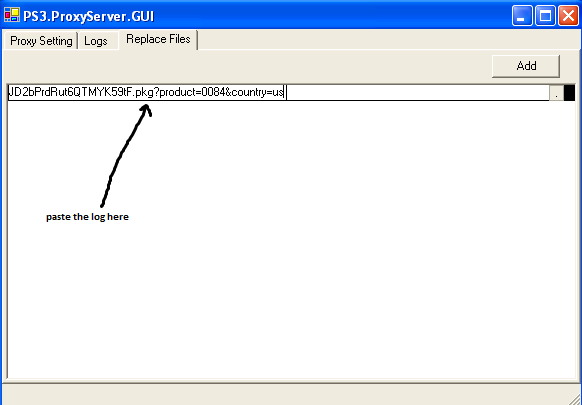
6. Second box: Click the small box
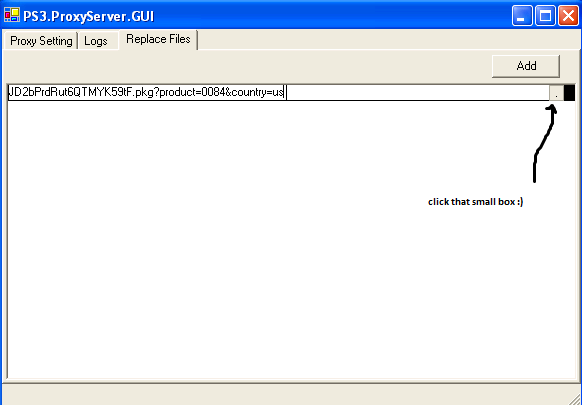
7. Now locate the file from your PC

8. Looks like this. Log and file location pasted.

Going back to your PS3
1. Log in again to your PSN account > go to your Download history
2. Download again the game you downloaded and see how fast it will transfer.
3. Install the game and Enjoy.
FIX for the latest FW update:
CLICK this for the FIX :
Basic steps:
1. background download the game you want to transfer and the pause the download
2. sign out your PSN account
3. get the new link from the LOG(any link)
4. place it on the left box on replace files
5. resume the download then pause
6. do the pause and resume til you see the black text from the log(indication that transferring is working)
7. wait and install the game
ALTERNATIVE WAY by desertfox615
When transferring your .PKG file from LAPTOP/PC to your PS3:
1. tinanggal ko yung Phone Line connection sa Router ko. thats means no internet connection yung PS3 and Laptop
2. close PS3.ProxyServer
3. erase config.xml
4. run PS3.ProxyServer again...dapat clear ang Logs and Replace files.
5. selected the game i want to transfer sa PS3 download management
6. click on Resume
7. monitor the Logs on your laptop. a new link will appear pero wala nang IP addresses
8. use the link from #7 para sa replace files.
GOOGLE DOC - PROXY LINKS (provided by other users)
CLICK this for: VIDEO TUTORIAL
Second video: PS3 LATEST FIRMWARE TUTORIAL
THINGS BE NEEDED BEFORE YOU CAN USE THIS APP:
1. router (should be wired or wifi)
2. Application: http://ps3-proxyserver.software.informer.com/
3. dotnetfx.exe: http://download.microsoft.com/download/ ... tnetfx.exe (install this before installing the application)
4. Internet Download Manager: Download this: https://www.dropbox.com/s/g9d00so299jmm ... ld%208.exe
Install all the above application and you are ready to go.
Working on windows XP, windows 7, and windows 8.
You can also download patches using this application.
STEPS:
On your PC:
1. Download this link http://ps3-proxyserver.software.informer.com/ and download the application.(stated above)
2. You might need this also before installing the above application: http://download.microsoft.com/download/ ... tnetfx.exe (stated above)
3. After installation of the .Netnetwork and the proxy application, go to C:(local disk) > programs files > CF3B5 folder > PS3.ProxyServer > click PS3.ProxyServer.GUI and the application looks like this:
4. Know first your IP address. example: 192.168.0.140
5. Open the application and put your IP address
6. Leave the port 8080 and tick PS3 Mode
7. Click "Start"
On your PS3
1. Go to network settings > internet connection settings
2. Select the method "Custom" > Wired Connection > Auto-detect > IP address seting: automatic > DHCP: Do not set > DNS setting: Automatic > MTU: Automatic > til you see "Proxy server"
3. On "Proxy server", click "use"
4. Put on the Address the IP address you use on the application (example above: 192.168.0.140)
5. Put "8080"on the "Port number"
6. Save the PS3 Network settings.
On PSN store
1. Log in your PSN account the Go to your Download History
2. Click any game you want to download
3. While its activating and downloading, the link on the LOGS on your Proxy application will appear.
4. You can now cancel the downloading game on your PS3.
4. Copy the log. I suggest copy the log and save it to your Notepad and keep the copy of it.
On your PC
1. Paste the copied log to your downloader. I personally use IDM. Paste it on the "Address box" to download and click OK
2. Wait and let it download
3. Save the downloaded file(PKG) to your preferred location to your PC.
4. On the Proxy application, Click "Add" and two boxes will appear.
5. First box: Copy and Paste the Log of the PKG file you downloaded. (you save it to your notepad)
6. Second box: Click the small box
7. Now locate the file from your PC
8. Looks like this. Log and file location pasted.
Going back to your PS3
1. Log in again to your PSN account > go to your Download history
2. Download again the game you downloaded and see how fast it will transfer.
3. Install the game and Enjoy.
FIX for the latest FW update:
CLICK this for the FIX :
Basic steps:
1. background download the game you want to transfer and the pause the download
2. sign out your PSN account
3. get the new link from the LOG(any link)
4. place it on the left box on replace files
5. resume the download then pause
6. do the pause and resume til you see the black text from the log(indication that transferring is working)
7. wait and install the game
ALTERNATIVE WAY by desertfox615
When transferring your .PKG file from LAPTOP/PC to your PS3:
1. tinanggal ko yung Phone Line connection sa Router ko. thats means no internet connection yung PS3 and Laptop
2. close PS3.ProxyServer
3. erase config.xml
4. run PS3.ProxyServer again...dapat clear ang Logs and Replace files.
5. selected the game i want to transfer sa PS3 download management
6. click on Resume
7. monitor the Logs on your laptop. a new link will appear pero wala nang IP addresses
8. use the link from #7 para sa replace files.
GOOGLE DOC - PROXY LINKS (provided by other users)


